Check a subtitle file against Netflix guidelines
Choose the Netflix subtitle or SDH profile that matches the job. The free checker opens the file locally and shows the rules behind its findings.
Open this tool with JavaScript enabled to work on your files locally.
- A cue crosses a cut while its second line wraps awkwardly.
- Review the suggested line break, then check the end time against the cut.
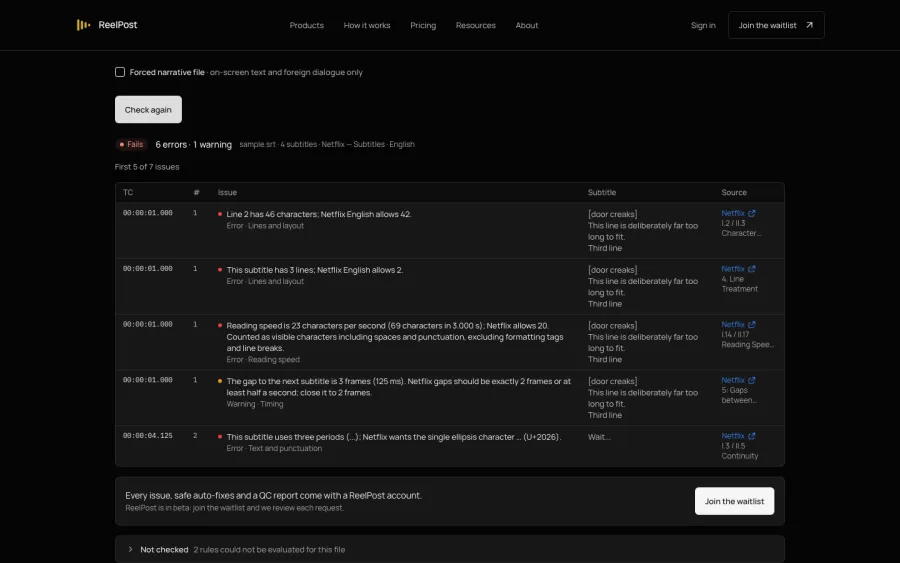
Review a finding against the picture
Start with a cue the checker flags. Read the named rule and look at the corresponding shot before changing the line break or extending its duration. The delivery partner makes the acceptance decision.
Confirm your waitlist email to see the complete findings, inspect proposed fixes and export a PDF or CSV report.
Run a test that answers a specific delivery question
Choose the track type that corresponds to what the buyer ordered. A subtitle file prepared for translation and an SDH file prepared for a same-language accessibility deliverable may include different information. Select the language profile that matches the words in the file. Confirm the audience and timecode settings with the delivery brief when the checker exposes those options.
Start with an approved short excerpt or a copy of the actual track. After the first check, group findings by type. Several reading-speed warnings in a single rapid conversation call for a different review than a recurring timing problem throughout the programme. Use the cited rule to understand the threshold and listen to the dialogue before deciding how to resolve it.
Review an automatic fix before exporting
Read the before-and-after text for each proposed change. Check whether a shifted end time enters a later shot and whether a corrected line break still keeps a name or short phrase together. Apply only the changes you approve. Save the resulting file under a new name, re-run the check, and keep the original report with the revised one. For rules marked as unavailable or unchecked, assign a human reviewer.
Check sync at three points in the cut
Open the approved picture and start with a cue containing an unmistakable spoken word. Pause on its first visible frame. Compare the word with the audio and check whether the cue enters over the intended shot. Repeat near the middle of the programme and again during the last dialogue scene. A clip whose first caption lands correctly can still drift over a long runtime.
Write down what you see at each point. A fixed discrepancy of two seconds in all three places suggests a different start or leader. A small difference at the beginning that grows by the end warrants checking the picture speed and the time basis. A change that appears only after a particular cut points to a different edit. Keep the three observations with the file so the next person has something precise to investigate.
Leave a usable handoff for the next editor
Save the exported file alongside the source. Give each a filename that identifies the cut, language and purpose. A screener and a delivery master can share a title and runtime while differing in leader, burned-in text or credits. Record which one you used for the review. If two exports are revisions of the same subtitle file, preserve the older approved copy until the replacement has been checked.
Open the downloaded file in the recipient’s playback or authoring software. Check a two-line cue, an accented name, a speaker change and a cue displayed over an on-screen title. When sending the file for approval, include the timecode of any remaining question and a short description of what the reviewer should decide. A precise query such as “Does this caption cover the location title at 00:18:07?” is easier to resolve than a general request for another QC pass.
Keep a decision log
When a reviewer leaves a flagged cue as written, record the cue number and the reason. The next pass may flag it again. Keep notes about approved exceptions beside the report so a second operator can distinguish a deliberate editorial choice from a finding that somebody simply overlooked.
Questions about this resource
Where are my files processed?
The public tool runs in your browser. Save the result before closing the tab. Your source file stays on your device.
Can my team see this workflow on a demo?
Join the ReelPost waitlist with your email and reply to the welcome message. A team member can arrange a walkthrough around the deliverable on your schedule.