The SCC caption format, explained
An SCC file is a Scenarist closed-caption sidecar. It carries timed caption data for a CEA-608 workflow. A caption decoder interprets its words and control codes to build the on-screen display. The file may open as plain text in an editor, but a human-readable transcript is only one part of what is encoded. Use a caption-aware tool to author or revise it.
- Cue near the opening: the label appears with the first phone ring.
- Same event in the last reel: compare the visible caption against the actual sound and record its on-screen frame.
- If the offset grows, review the declared frame rate and timecode convention before shifting the track.
Understand what an SCC timestamp means
A typical SCC line combines a timecode with groups of hexadecimal characters. Some groups represent text and others instruct a decoder to change placement, styling or display state. Data can be loaded into caption memory before the audience sees the completed caption. A timestamp beside a data packet can therefore differ from the moment the line becomes visible. Compare the decoded presentation to the picture when timing matters.
At the top of the file, identify the SCC header and make sure the receiver expects a sidecar of that type. Save a clean copy of the submitted bytes before editing. A working file renamed with a different extension will keep its original contents. Choose the target caption standard and export function in an editor that can encode it.
Establish the timecode relationship
Ask for the master frame rate and whether the receiving specification calls for drop-frame or non-drop timecode. Drop-frame is a frame-numbering convention. The convention skips certain numbers to keep displayed time closer to elapsed clock time. The picture frames themselves remain present. A decoder that assumes the wrong convention can still look close near the opening while drifting later in the program.
Source and caption rates need special care when converting between delivery systems. Apple’s asset guide gives frame-rate and caption-timecode instructions for its deliveries. Prime Video documents how frame-based captions are described in its manifest. Start with the buyer’s written requirements for the actual title, then set the conversion in the authoring tool. Changing a semicolon to a colon in text does not perform a timing conversion.
Check a decode before you sign off
Pick a two-speaker exchange, a cue near the end of the film, a new line that immediately follows another, and a caption placed away from on-screen text. Decode the exported SCC against the intended picture. Watch for characters that were substituted, text that never clears and lines that appear in a different order from their representation in the editing window. Keep a copy of the editable caption project as well as the SCC.
If a request changes from SCC to another delivery format, identify what the new format can preserve. An export to SRT may carry the visible words and event times but lose position or presentation behavior. Review the conversion as a new deliverable. Record the original, the new format, the source cut and the decoder used so the receiver can reproduce your check.
A useful export comparison includes a cue that changes rows and one that clears to an empty screen. Log the last visible frame before the change and the first frame of the new caption. If a decoder leaves a stale line behind, that note tells the author which display transition to inspect. For a second test, choose text near the right edge of the caption area. A line that wrapped comfortably in a modern subtitle editor may become awkward when rebuilt in a 608 grid. Preserve both the source track and the decoded preview until the recipient accepts the file. Include its export settings with the final caption master.
Questions about this resource
Which instructions apply to my particular delivery?
Confirm the destination, title version and deliverable with the receiving team. Use the linked references and worked example to prepare questions before you send a final file.
Can my team see this workflow on a demo?
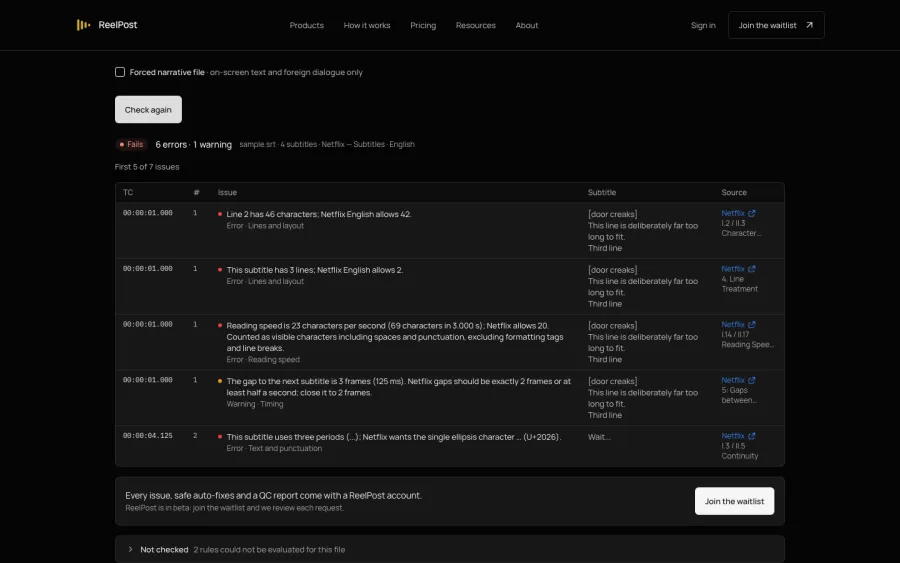
Join the ReelPost waitlist with your email and reply to the welcome message. A team member can arrange a walkthrough around the deliverable on your schedule.