Build an end credits roll
Enter approved roles and names, inspect the roll, then export a review video directly from your browser. Confirm your waitlist email to download a clean PNG image sequence.
Open this tool with JavaScript enabled to work on your files locally.
- Place “Edited by” on one line and the approved name on the next.
- Send the marked preview for sign-off before importing the clean frames into the timeline.
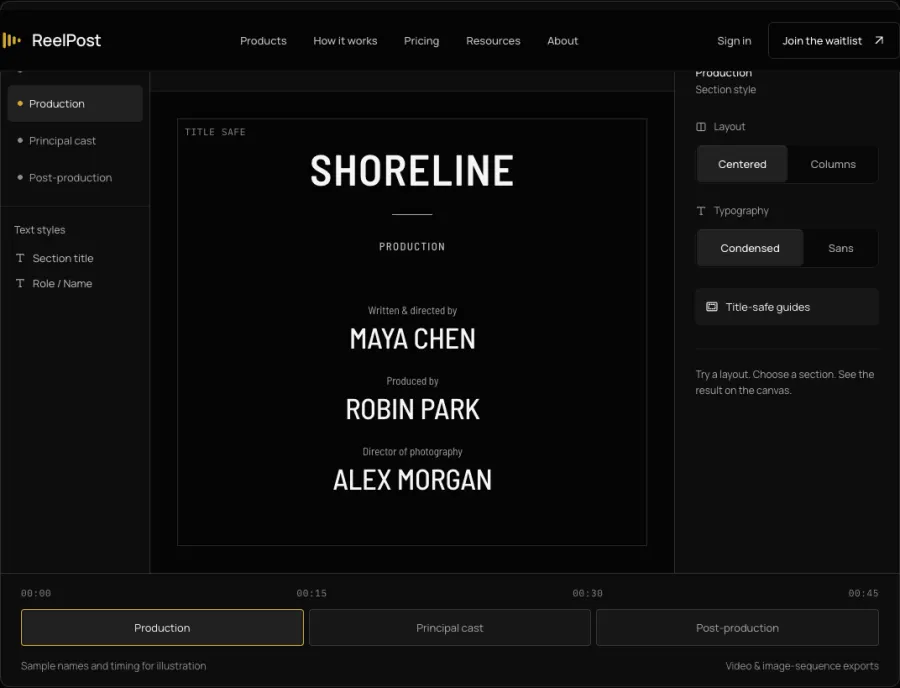
Review names in the rendered roll
Keep the approved spelling, order, card placement and wording from your own agreements. Ask the credited person or production coordinator to check accents, punctuation and role names on a rendered frame.
The local generator exports a 12-second, 1280 × 720 roll at 24 fps. For the PNG export, import the numbered images as one sequence at 24 fps.
Prepare the credit copy for approval
Start from a version of the credit list that has an owner and a date. Put each role or name on its own line. Keep grouped names in the agreed order and use accents, initials and suffixes exactly as supplied. If you need a particular logo, title card, union treatment or contractual grouping, retain that instruction for the finishing session. This simple preview draws text lines in a single centered column.
For an early approval, use a compact excerpt containing an unusually long name, a department heading and two similar names. The long name tests the available width. The similar names make it easier for the reviewer to spot an incorrect role assignment. Have the production coordinator compare the render with the approved copy instead of transcribing corrections from memory.
Review the marked video and the clean sequence
Use the preview position control to inspect a point in the roll. Export the marked video for circulation. Keep the browser tab visible while encoding the video because the recording follows the live canvas. Where the browser can encode MP4 the result is MP4; browsers offering another supported encoder can produce a WebM preview. Check the downloaded extension when attaching the file to an approval email.
For the clean export, confirm the private status link from your waitlist email, download the ZIP and extract its numbered PNG frames into a new folder. Import the first image with the image-sequence option enabled and set the interpretation to 24 fps. At the supplied duration the sequence contains 288 frames. A bin showing hundreds of individual stills means the sequence import option was missed.
Inspect the last frame in context
Place the imported roll after the final picture in a test timeline. Watch the first credit enter, a department change near the middle and the last line leave frame. Check the transition to any production logos or hold at the end. If the roll feels crowded, reduce the number of names in the approval excerpt and move the full design into the credits editor where the final duration and layout can be chosen.
Record the version you reviewed
Save a copy with the programme name and picture version in its filename. If the producer later sends a revised cut, keep the first review and start a new version from the revised source. An edit near the beginning can change every downstream timecode even when the total running time barely changes. Write down the frame rate and the first picture frame used for comparison.
For the handoff, identify who prepared the file, who checked it and which items still require a decision. Include the actual deliverable and the source used to build it. A person opening the folder a month later should be able to tell which artifact was for review and which one was approved for delivery, without relying on the upload date.
Keep the reply tied to the correct roll
When circulating the preview, identify the filename and ask the reviewer to quote the complete affected line. A correction to a surname in one credit can apply to another department credit too. Check each occurrence against the approved list and record the change once.
Questions about this resource
Where are my files processed?
The public tool runs in your browser. Save the result before closing the tab. Your source file stays on your device.
Can my team see this workflow on a demo?
Join the ReelPost waitlist with your email and reply to the welcome message. A team member can arrange a walkthrough around the deliverable on your schedule.